intake · Product help
Review intake inquiries and convert them safely
Inspect original answers, possible duplicates, consent, ownership, and delivery state before creating or linking a client.
SeniorPath Product & Compliance · Product version 2026.09
Source checked · Replit Agent repository source inspection; not human, legal, provider, or publication approval.
This is general product guidance, not a view of your account. Confirm permissions and current facts in your workspace before acting. Do not enter private client information here.
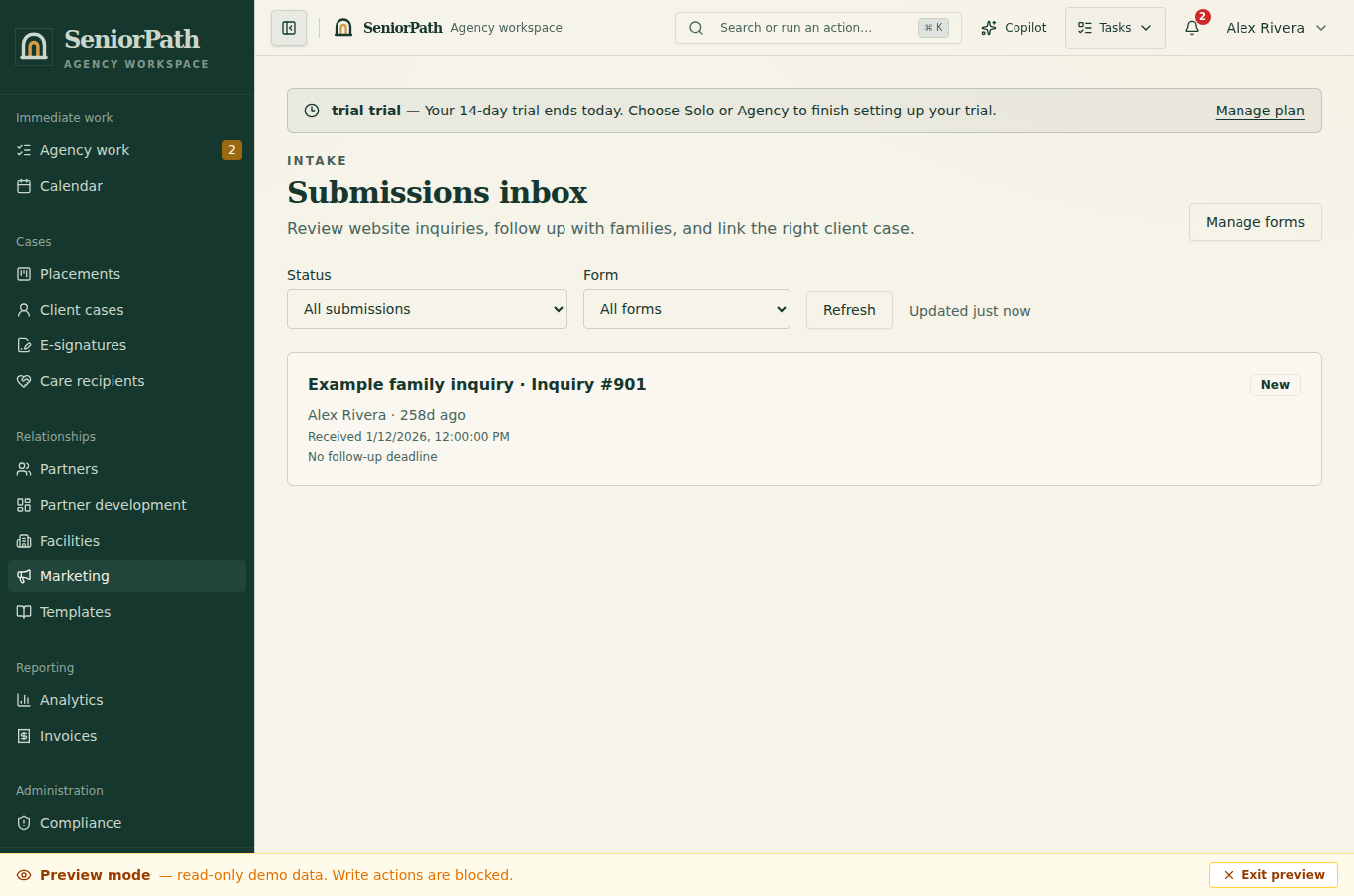
Prerequisites and role: use an accepted inquiry from the Intake submissions inbox on Solo or Agency. Owner/admin/advisor client-write access is required to create or link a case; assistants normally review only. A website embed also depends on external site permissions and builder policy.
Steps: 1. Open Marketing, Intake, then Submissions. Use filters and pagination to find the inquiry. 2. Open the submission and review the original answers, consent, received time, assigned owner, follow-up target, attribution, and notification or delivery state. 3. Review possible duplicate clients. Choose the correct existing client and explicitly link it, or create a new client only when no match exists. 4. Open the resulting client case, verify mapped fields, and begin follow-up from the authorized record.
Expected result: the inquiry retains its original evidence and is deliberately connected to one reviewed client case; an internal notification or delivery state does not prove an advisor contacted the family.
Exceptions and recovery: an empty inbox may mean no accepted submissions or active filters. Restricted roles can review but cannot convert. If conversion fails, inspect whether a client was already created before retrying. Linking does not overwrite the existing client; correct differences on the client record after review.
Operator duty: verify consent, identity, ownership, duplicate status, attribution, and every mapped fact before contact.
Family visibility: the visitor sees submitted form and confirmation content; internal routing, duplicate review, attribution, and conversion history remain private.
Reverify: review at conversion and before first contact, especially when assignment, consent, or duplicate evidence changes.
Was this article useful?
Feedback collection is currently unavailable pending privacy review. Do not enter client information here. This feedback is not a support request.